Showing posts with label cisco. Show all posts

Thursday, August 12, 2010

BERT

So yes it’s been a while since my last post. I’ve been busy going back to school working on a BS in Electrical Engineering. Additionally got a promotion at work now Sr. Network Engineer, anyway on to the reason for the post.

Bit Error Rate Test – BERT
http://en.wikipedia.org/wiki/Bit_error_rate

I’m working on swing over to a new DS3 this weekend at work. This will be my first DS3 turn up and it turns out it’s just an over grown T1 for all extensive purposes. One important thing that I’ve learned to do though before moving production traffic is make sure L1 & L2 are actually functional. This is where BERT comes in.

I’ve worked with the provider to put a loop facing the new end of the DS3. On the interface I have the following config:

description Unused
bandwidth 44210
no ip address
no keepalive
dsu bandwidth 44210
scramble
framing c-bit
cablelength 10

I show the interface is UP UP so at least I know I have my RX and TX side of the cables connected correctly. To kick off the BERT we must make sure keep alives are disabled which you can see above it is.

From the system we issue the following command under the interface. (this may vary by platform):
bert pattern qrss interval

In this case I’m running the test for 12 hours as I want to be absolutely certain this circuit is ready to pass production traffic. Notice how I’ve used QRSS.

Per Wikipedia - QRSS (Quasi Random Signal Source) – A pseudorandom binary sequencer which generates every combination of a 20-bit word, repeats every 1,048,575 bits, and suppresses consecutive zeros to no more than 14. It contains high-density sequences, low-density sequences, and sequences that change from low to high and vice versa. This pattern is also the standard pattern used to measure jitter.

This is as close to real life traffic you can create with a simulated test. If it passes this I should be in good shape to go assuming L3 and up play nice but at that point it’s my problem to deal with.

From this point we can go back to enabled exec mode and check the progress by issuing:
show controllers serial 3/0/1

At the bottom we see:
BERT test result (running)
Test Pattern : 2^20 qrss, Status : Sync, Sync Detected : 1
Interval 720 minute(s), Time Remain : 11:27:40
Bit Errors (since BERT started): 0 bits,
Bits Received (since BERT started): 86115 Mbits
Bit Errors (since last sync): 0 bits
Bits Received (since last sync): 86115 Mbits
MDL transmission is disabled

As you can see we’ve been going for about 30 minutes with no errors so this is looking good.

Friday, April 16, 2010

CCNA Voice Study – Installing CUCME PART 1

CUCME is comprised of multiple files and file types compared to a single unified Bin file like IOS. CUCME is comprised of the following: Basic Files, GUI Files, XME Temple File, Music on Hold (MOH) Files, Script Files, and Miscellaneous Files.

To install CUCME you must first have a matching IOS version to support it such as advanced IP services or advanced enterprise services. See the Cisco download area for the proper IOS version to download to match with the CUCME version you will be installing.

Once the IOS is upgraded issue the following command:
Archive tar /xtract tftp://(ip address)/cme-full-7.0.tar flash:

Replace the details above to your actual release. This will then TFTP the tar file and extract it in real time to the flash storage. Now that all the files are on the router we need to make them accessible to the IP phones for their firmware etc. Issue the following commands:

Tftp-server flash:/phone/7940-7960/P00308000500.bin alias P00308000500.bin

What this is doing is telling the router to share out that Pxxx file via TFTP and also should a device just ask for that file and not provide a full path it will still send it. This is important as the phones will only ask for the file and not the path where that file resides. Do this for all the remaining files in that folder adjusting file names accordingly. You will also need to repeat this process for all the backgrounds, MOH files ect that the phones will need.

Now that the files are served up we need to configure some of the CUCME parameters. The majority of the commands will be issued under the telephony-service configuration mode. Four key things must be configured for the ISR to service IP Phones.

Maximum Number of Phones and DNs
Firmware load files
Source IP address information
Generated configuration files.

Commands are as follows:
Max-ephones (number of phones you’re licensed for)
Max-dn (number of lines, if you had four 2 line phones this would be 8)
Load 7960-7940 (or phone model you’re using) P00308000500
If you don’t know what firmware to use Google CME 7.x and your phone model, there will be a firmware version specified by Cisco.

More to come in part 2.

Thursday, July 9, 2009

Debuging H323 Dial-Peers

Today has been a long day. I’ve been trying to get 4 analog DID, and 4 analog DOD lines working on a 2811 with one FXO and one FXS DID card. Some very useful debug commands in this process have been.

debug voip dialpeer all
This allows me to see when I place an outbound call what Dial-peer it is actually hitting and all the detail about it.

Debug vpm all
This gives me the debug output from the FXO and FXS cards. In my case it’s telling me I need to get a hold of the phone company. The lines are supposed to be Ground-start however when my FXO goes off hook it never sees the circuit complete and then just drops the call.

Tuesday, July 7, 2009

Upgrade Rommon

I guess today is a rommon intensive day; I was curious what the process was to upgrade the rommon on a 2801. It’s pretty straight forward. Please note there is no real gain to upgrading your rommon unless there is a new feature that you need which is in the update.

1. Download rommon file for your platform. Example C2801_RM2.srec.124-13r.T5 is the latest and greatest for the 2801.
2. TFTP this file to Flash.
3. Router#upgrade rom-monitor file flash:C2801_RM2.srec.124-13r.T5
4. This will erase the Field-upgrade rommon memory area with the new file and reboot your router.
5. Confirm new rommon loaded with the show ver command output:

ROM: System Bootstrap, Version 12.4(13r)T5, RELEASE SOFTWARE (fc1)

That’s all there is to it.

TFTP Download from Rommon

I got tired of having to look this up all the time so I’m writing it up. So I had a 2801 I foolishly loaded an IOS image on that it didn’t have enough memory for and I got the dreaded reboot loop of death as it loads and crashes.

Solution is to use the break command to drop into Rommon mode and then load a new IOS image via TFTP either direct into DRAM or flash. Issue the following commands in Rommon mode it should assign the IP information to the first interface so on a 2801 FE0/0.

1. IP_ADDRESS=(IP Address)
2. IP_SUBNET_MASK=(Subnet Mask)
3. DEFAULT_GATEWAY=(Default Gateway IP)
4. TFTP_SERVER=(IP of TFTP Server)
5. TFTP_FILE=(File Name of the IOS image)
6. tftpdnld (or a –r to load right into DRAM)

Once booted you could then copy the image onto flash and of course change your boot parameters to match the new ios name and location.

Friday, June 12, 2009

Applying CUCM Patches to CUCM 6.1

As we all know all software is broken from the day it ships. CUCM is no exception (Cisco Systems please don’t sue me I’m just stating a fact about bugs) so like all things there are patches. This will go over the process of getting the Patches and applying them to your CUCM server. You must have a valid CCO account and support agreement to legally follow this document.

Download the Update
1. Login to Cisco CCO.
2. Go to Support > Download Software *subject to change*
3. Voice and Unified Communications Software.
4. Use the new software delivery system.
5. Expand IP Telephony > Call Control > Cisco Unified Communication Manager (CallManager).
6. Click on Cisco Unified Communications Manager Version 6.1.
7. Click on Unified Communications Manager Updates.
8. In this case I’m going to select the latest release of 6.1(3b)SU1.

*WARNING* Now if you read the readme for 6.1(3b)SU1 which I highly recommend for all upgrades. You will notice that the upgrade path to 6.1(3b)SU1 is from 6.1.3x platform only. So if you are running 6.1.1 you will need to find the next upgrade before you can apply this one.

9. Go ahead and download the ISO file. I would recommend verifying the MD5 checksum to make sure there was no error in download. And Burn the disc.

Google md5sums it’s simple and allows you to drag and drop a file on it and it will calculate the MD5 hash for comparison on Cisco’s website.

Apply the Patch
1. On your CUCM server go to Cisco Unified OS Administration.


2. Go to Software Upgrades > Install/Upgrade.


3. We will be using the DVD/CD option that you burned. By the way it might be a good time to put this disc in the drive of the server you’re patching.
4. In Directory just put a / as the patches are on the root of the file system for the disc.


5. Click Next
6. It should now show the version available to upgrade. You can also select if you would like it to reboot the server once it is completed.
7. Click Next
8. You can now monitor the progress. Be advised this can take an hour + to complete. On my test CUCM server in a VM it took an hour and a half to patch with zero items in the DB. The more you have in your CMDB the longer this will take.

Kick back and watch the text scroll by. If all is well once this completes your server should restart and should reflect the new version on the logon page. This may also install new firmware for your phones so be advised they will all start updating as well. I would recommend blocking out a large segment of time for this upgrade depending on the size of your install.

Thursday, June 11, 2009

Implementing Extension Mobility

So a feature we have decided to implement with our upgrade for all of our phone users is extension mobility. What extension mobility allows a person to do is hit services on the phone entire their username and a pin and then that phone pulls all of their information from the CUCM cluster and becomes their extension. This means they no longer have to take their phones with them when they move desks, merely sit down enter their info and bam the phone is theirs.

There are a few steps to accomplish this task. We must first enable the service. Tweak a setting in the service parameters. Setup the extension mobility service. Create the virtual phone device profiles. In reality they are just device profiles but I find calling them virtual phone device profiles helps with the understanding of what they really are. And finally subscribe physical and virtual phones along with end users to the service and profiles.

With the explanation out of the way let’s get started. Wait, wait, there is one more point to bring up. We have a choice to make or namely you have a choice to make.

There are two ways to implement extension mobility. You can do it on a per user basis so everyone has a normal configured phone. But a few select people say VP, C level people have the mobility feature. This is how we did it at my last employer. The other option the one we are going with here is no one specifically has a phone assigned to them. Everyone will get an extension mobility profile and then log into their phone wherever they are sitting. The advantage for us is with all the office moves changes etc, no one will have to wait for IT to either re-program or move their phone. The configuration however is the same it’s just a matter of will you be making a handful of extension mobility profiles or a lot. And will you be associating physical phones to people or not. (Hint the bulk editor is your friend.)


Enable Extension Mobility
1. Go to Cisco Unified Serviceability.


2. Tools > Service Activation.
3. Put a check in the Cisco Extension Mobility box and click save.

Adjust Service Parameters
1. Go to Cisco Unified CM Administration.
2. System > Service Parameters


3. Select your server from the drop down list. If you have a cluster, select your publisher.
4. Select Cisco Extension Mobility (Active)
5. Under Multiple Login Behavior change this from Multiple Logins Not Allowed to Auto Logout. This way should a user forget to logout and want to login somewhere else they will be automatically logged out on the other phone.
6. Click Save.


Create Extension Mobility Service
1. Go to Device > Device Settings > Phone Services.


2. Click Add New.
3. Service Name = Extension Mobility
4. ASCII Service Name = What you want to display on phone. I used Extension Mobility.
5. Service Description = What you want explaining the service in CUCM. I again used Extension Mobility.
6. Service URL = http://(IP of CallManager):8080/emapp/EMAppServlet?device=#DEVICENAME#
7. Click Save.

Create Device Profile
1. Go to Device > Device Settings > Device Profile.


2. Click Add New.
3. Select the phone model that this user will be using and click next.
You notice this looks like a stripped down version of the phone template.
4. Fill out the fields as applicable. Under device profile name make sure you note the users name or login for future identification as this will be their phone for all extensive purposes.
5. Click Save.


You should now be at a screen remarkably familiar to a phone configuration. This again is why I call them virtual device profiles. We are programming a phone it’s just associated to a user instead of a MAC address.
6. Click on Line one and add your DN as your normally would.
7. Click Save once you are done adding your DN.
We have now created the virtual phone profile AKA Device Profile. Now we need to associate it to our user and subscribe the service to the phone and user.

Subscribe Phones and End Users to Extension Mobility Service
1. Go to Device > Phone.
2. Pick a phone you want to work with.
3. Scroll down to the Extension Information section.
4. Check the Enable Extension Mobility box.


5. Click Save.
6. Go to User Management > End User
7. Pick a user you want to work with.
8. In the Extension Mobility section select the device profile you created for this user. Move it down into the Controlled Profiles.


We have the user now associated to his profile. Now we must subscribe both the physical and virtual phone to the extension mobility service. This may seem confusing as we already enabled it. Correct we enabled the service on the phone and user but we didn’t give an entry point to the user to get to the service. That is what subscribing is for. This will enable the service to show up when the user hits the services button on their phone.
9. Go to Device > Phone.
10. Select your phone you’re working with.
11. In the related links drop down select Subscribe/Unsubscribe Services.


12. In the Select a Service drop down select Extension Mobility. This is the service we created earlier.
13. Click Next.
14. If you wanted to change the display name you could here but the defaults we setup should be fine. Click Subscribe.


15. Close this window.
Now you might think I’m done but you’d be wrong. Sure now you could go over to the phone and login as that user no problem. Now try to log out. What is that you say? You go to services and there aren’t any. Well of course not their virtual phone AKA Device Profile hasn’t been subscribed to the Extension Mobility service. Let’s fix that.
16. Go to Device > Device Settings > Device Profile.
17. Select the Device Profile you’re working with.
18. Under related links select Subscribe/Unsubscribe Services.
19. Run through the process of adding the Extension Mobility service same as we did for the physical phone.

That’s all there is to it. You should now be able to hit services on the phone when it’s in its blank state use your username and PIN. The phone should do a quick reset and bam it’s now that user. Now you just need to make umpteen however many device profiles for people.

Wednesday, June 10, 2009

Configure Cisco Unified Communications Manager (CUCM) to Authenticate End Users against Active Directory

A project you will be seeing many posts from. At work we are working to upgrade our Cisco Call manager from 4.1 to 6.1. This is a task I have done before however now with more focus and a little less hectic of a career I am going to take the opportunity to document the process.

We are compiling a list of wants and needs for the upgrade. One feature we are playing with in development right now is LDAP integration. This will allow us to target a few specific OU (Organizational Units) in Active Directory for our region which our CUCM 6.1 servers will be supporting. This way we don’t end up with all 20k+ users in our CUCM database.


1.    Make sure the Cisco DirSync service has been activated. Without this you’ll find all the settings in the world will yield you no users synchronized to the CMDB.

    a)    Go to Cisco Unified Serviceability.
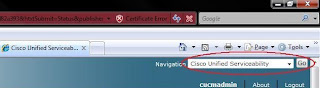

    b)    Check Cisco DirSync and save.
    c)    Go back to Cisco Unified CM Administration.

2.    Go to the System Tab > LDAP > LDAP System Configuration.
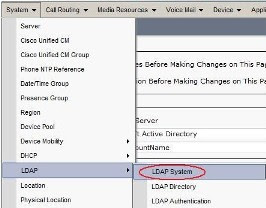


3.    Put a check in the Enable Synchronizing from LDAP Server box.
    a)    Select the appropriate LDAP Server Type and Attribute type. In our case the Type is Microsoft Active Directory and sAMAccountName is the User ID field
    b)    Click save.


4.    Go to the System Tab > LDAP > LDAP Directory. This is where we will configure the DNs to search for user synchronization from Active Directory.
5.    Click Add new.
6.    Fill in the fields as follows.
    a)    LDAP Configuration Name = A logical name you give to this directory.
    b)    LDAP Manager Distinguished Name = An AD account with read rights to AD. I recommend creating a service account for this purpose.
    c)    LDAP Password = Password for that AD account.
    d)    Confirm Password = If I have to explain stop now.
    e)    LDAP User Search Base = This is the LDAP DN for where you want CUCM to search for users. The easiest way to find this is to get LDP.exe from Microsoft and take the following steps.
        i.    Launch LDP.exe
        ii.    Click Connection > Connect. Leave the box blank and it will bind to your current AD domain assuming the machine you are using is in the Forest / Domain you want CUCM to reference. Click ok.
        iii.    Click Connection > Bind. You should be able to use the default of the currently logged in user. In most organizations all users have read rights to AD.
        iv.    Click View > Tree. The BaseDN would be the simplest form of your domain so blah.net. Click Ok.
        v.    You should now have a tree on the left hand side and should be able to browse to the OU containing the users you want CUCM to add to the database for you.
        vi.    Once you locate the OU right click it and click Copy DN. This will copy the full DN making for simple copy and paste delight over in CUCM.
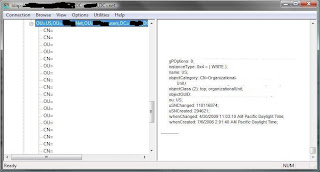


    f)    Paste the DN into the LDAP User Search Base.

7.    Setup your schedule for how often you want CUCM to sync from Active Directory. Dependent on changes made per day this could be once a day up to every couple hours if a lot of changes are made. Biggest thing to avoid would be large syncs during business hours as this may put additional load on the CUCM cluster.
8.    Setup what fields you want to map. In our case the defaults were fine.
9.    Finally put in the DNS or IP address of your Domain Controller. As to if it’s using point 389 or the SSL port is between you and your AD team. I highly recommend adding redundant Domain Controllers this way should the first fail the CUCM server will still be able to perform scheduled syncs.
10.    Click Perform Full Sync Now to kick off the first sync it may take a while however you should eventually see people show up under User Management > End Users.
11.    Ok so now we have people in the directory right? Well now we need to tell CUCM to use the LDAP server (Active Directory) to authenticate them.
12.    Go to System > LDAP > LDAP Authentication.
13.    Check the Use LDAP Authentication for End Users box.
14.    In the LDAP Manager Distinguished Name field this again is our service account to read against AD.
15.    In the LDAP Password field put the password of said service account.
16.    Confirm Password again if I have to explain I don’t know how you even got this far.
17.    LDAP User Search Base. This is a little different instead of specifying all the way down the OU level for our LDAP DN we will want to specify the root of the forest. This way any valid user regardless of if they get moved should be able to authenticate. e.g DC=company,DC=net
18.    Next fill in the same domain controllers and settings you used for the previous step. Again I stress resiliency here is your friend, unless you like having to work weekends and nights then by all means shun fault tolerance.
19.    Click save.


Time to give it a spin. Go to the IP address of your CUCM server / ccmuser. e.g. https://10.20.6.157/ccmuser/ You should be able to login with your AD username and password.


So hopefully you are able to login. Now the unfun part. Each end user needs to be associated to a device so that they can take full advantage of this. I will follow up with another document on how to bulk make these associations unless you want the pain of matching people up to phones.

Monday, June 8, 2009

Cisco AnyConnect versus Cisco VPN Client (IPSEC)

Below is a small list I created for a project at work, compairing the newer Cisco AnyConnect SSL client to the older Cisco IPSEC VPN Client.

AnyConnect

IPSEC VPN Client

Support for 64bit windows.

Yes

No

Connect before logon support for Windows Vista.

Yes

No

Requires PKI framework.

Yes

No* If client side certificates are not used.

Functions in locked down network environment, Web Proxy, Port Blocking etc.

Yes

No

Supports High Encryption AES-256 for example.

Yes

Yes

Ease of administration by distributing software / profile updates from the head end security appliance.

Yes

No

Designed for latency-sensitive traffic.

Yes

No

RADIUS Authentication support

Yes

Yes

Can be implemented in tandem with IPSEC infrastructure.

Yes

Yes

Vulnerable to man in the middle attack.

Yes

No

Vulnerable to MD5 SSL exploit.

Yes

No

Able to function in extreme latency / low bandwidth circumstances. e.g. Satellite

Yes

No


*Bolded result deemed positive feature.*

Monday, July 28, 2008

Post UNO

So I've decided to start blogging. For those of you that know me you probably guessed by the title it will be job related. For those that don't here's a synopsis for what I do.

Title: Sr. Infrastructure Administrator (for now we're in a merger could change who knows)
Job Functions: EVERYTHING! more specifically:

MS Windows Server 2k - 2k8
MS Exchange 2k3 - 2k7
VMware ESX server 3.5
VMware VDI
SCOM
SCCM
SMS
Blackberry
Cisco IP Tel
Cisco WAN
Cisco LAN
Cisco WiFi
MS OCS
MS Sharepoint <-- hopefully passing off please dear god :)
Server Provisioning
Desktop / Laptop Tier 3 Support
Video Conferencing
QoS

I am sure there are other things but for now that's what pops into my head. So expect to see this blog fill with technical detail regarding these and other topics.